
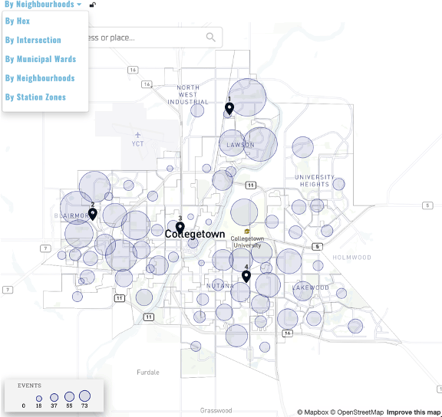
The map shows the distribution of the filtered data by the selected geographic breakdown. The “Hex”- and “Intersection”-level views show data on a smaller scale, while other options, such as “Station/Fire Zone” and “Neighbourhoods”, will show an aggregated view.
Use the address bar to enter a location and bring the map’s view to that address.
The image icon ( ) will download an image file of the map that can be used in reports.
The satellite icon ( ) will switch the map between satellite and traditional map styles.
Select an item on the map to see the detailed associated response details.
Customization Options
If can be useful to look at service agency data through different geographical contexts: neighbourhood, ward, or subdivisions. Many of these different geographical breakdowns can be integrated into our app.