⚠️ NOTE: this is an early access feature. The information in this article is likely to change. You may be required to update your configuration as we release new functionality or update our infrastructure.
Before you begin
The darkhorse.app SSO feature associates an email domain entirely with your organization's identity provider. This means any previously given darkhorse.app user credentials will not work, and users must sign in via Okta. Please ensure that any darkhorse.app users are granted access in Okta.
Known limitations
IdP-initiated sign-in is not supported by our authentication provider (AWS Cognito). This means that you will not be able to sign in by clicking a link in Okta - you must navigate directly to https://darkhorse.app and be redirected to Okta to sign in.
Migrating your organization to SSO is currently a manual process. Once we have your information, please allow a few days for us to make the necessary changes to ensure you don't lose access.
Setup instructions
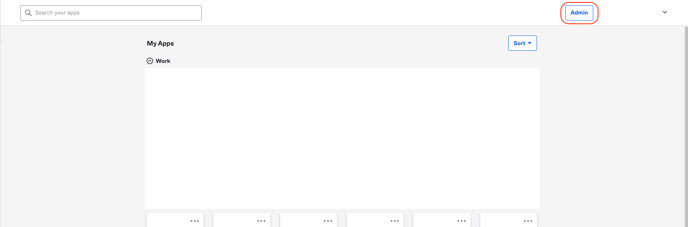
1. Navigate to your Okta admin dashboard
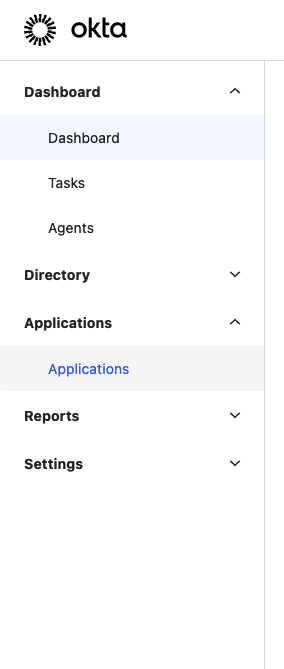
2. In the left sidebar, choose "Applications"
3. Choose "Create App Integration"

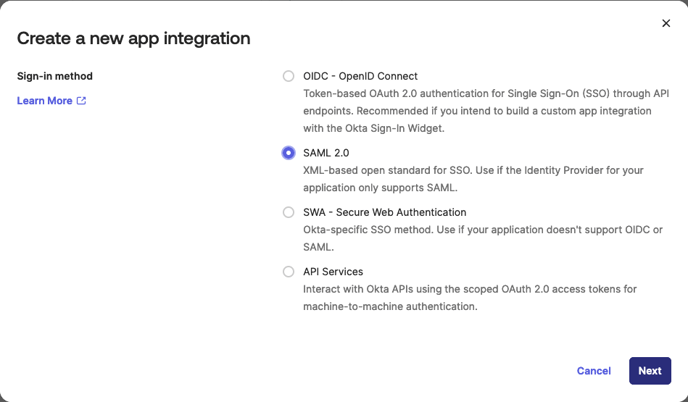
4. Choose "SAML 2.0" and click "Next"
5. Name your app and click "Next"
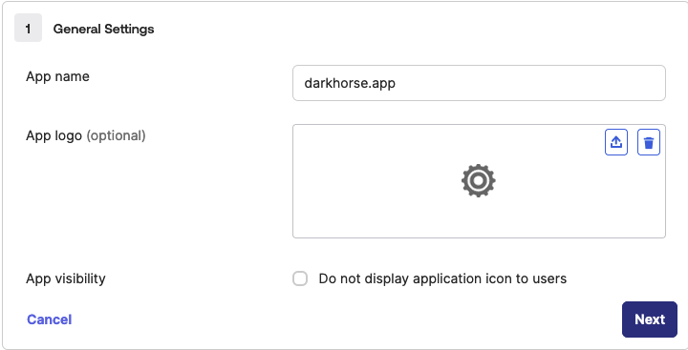
6. Fill in the following information under "Configure SAML" and click "Next"
Single sign-on URL: https://des-apps-prod.auth.us-west-2.amazoncognito.com/saml2/idpresponse
Audience URI (SP Entity ID): urn:amazon:cognito:sp:us-west-2_lEfTGJ33J
Ensure the "Use this for Recipient URL and Destination URL" box is checked
Attribute Statements
- Name: http://schemas.xmlsoap.org/ws/2005/05/identity/claims/emailaddress
- Value: user.email

7. Choose any options you like for the Feedback tab and click "Finish"
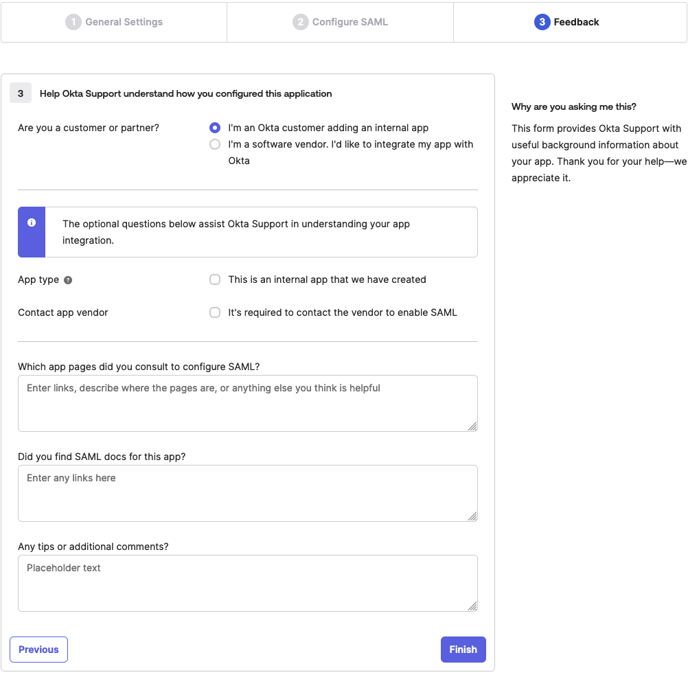
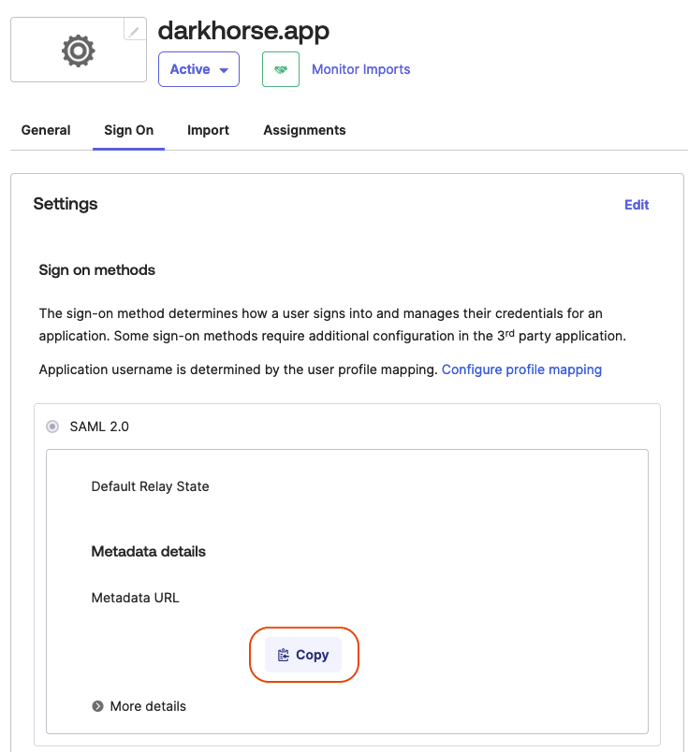
8. Copy the Metadata URL and send this value to Darkhorse