Save a Map Image: Select the  icon in the bottom right to instantly download a picture of the map currently shown.
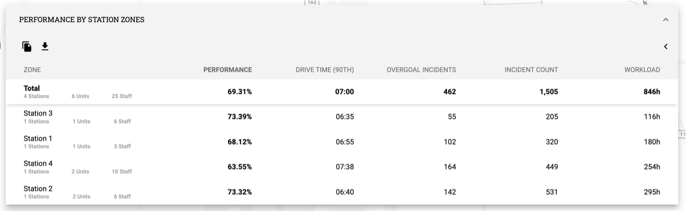
View Data in a Table: To view the data represented on the map in a table, select the “[Selected Metric] by [Selected Boundary]” dropdown bar towards the bottom left of the page. This menu allows a few different actions:
- Select the > icon to expand the table and show all metrics.
- Select the
 icon to copy the shown data to your clipboard.
 - Select the
 icon to download the data in .csv form.
- “Download Visible” downloads the data for the data shown using the selected boundary.
- “Download All” downloads data for all different boundary options.