
Introduction
HQ is the easiest way to see and export key performance indicators and other metrics regarding your service’s performance. Main metrics are visible at the Card level with more details in the Report level, and can be filtered using the controls along the top.
Filters
a) Date Filter 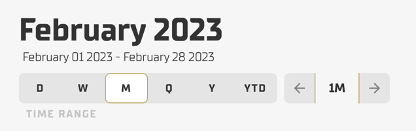
This control allows you to select between different time ranges (D = Day, W = Week, etc.) to view data. You can shift the selected time range backward or forward by selecting the ← and → arrows.
b) Other Filters
Specific to your implementation, these filters allow you to view the data in the dimensions most relevant to your agency.
Customization Options
The filters included here are the default options. However, these are fully customizable if there are other dimensions your service is interested in. If there are other filters you would like to add, let us know and we can set them up.
Cards Page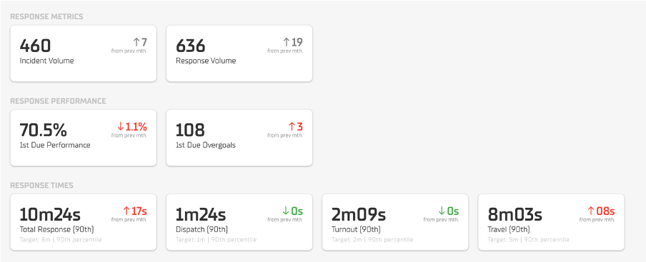
The Cards page is the homepage of HQ and will show you metrics for the given time range and filter selections. Select any card to view the Report Page for that metric.
Cards Customization Options
The cards shown are highly customizable. If there are specific key performance indicators your agency is monitoring, let us know and we’ll be happy to build them into your HQ dashboard.
Report Page
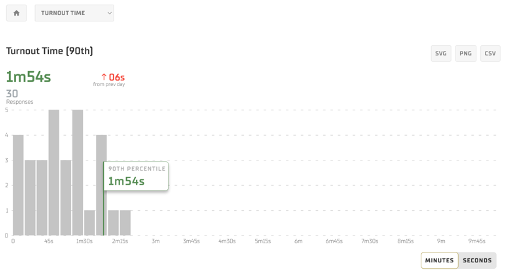
Selecting a card will navigate you to that metric’s report page, where you can see a detailed breakdown of that metric. There are a few key areas to this page:
a) Navigation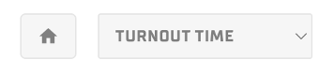
The home icon will take you back to the Cards Page. The dropdown menu has the same metrics as the Cards page and is an easy way to swap between them. These are also accessible by navigating back to the Cards Page.
b) Export
These options facilitate the quick export of the shown data in image (SVG, PNG) or table form (CSV). The item will show up as a download in your browser.
c) Report Content
Content will vary depending on the Report Page. Pages may include one or multiple graphs and display options (ex. Minutes or seconds). Hover over a graph to view specific data points.
Report Page Customization Options
There are a few possible directions available on the report page. Clients have asked to include specific breakdowns that may be useful as an always-on dashboard, like something posted in a break-room. If there’s a certain breakdown of data you’d like to see in HQ, let us know.