
Configuring Stations
Add a station: Add a station on any hex by clicking that hex.
Remove a station: Select the station you’d like to remove, then select “REMOVE STATION” on the resulting menu.
Configuring Apparatus
Add an apparatus: Select the station you’d like to add an apparatus to, then select “ADD UNIT” on the resulting menu.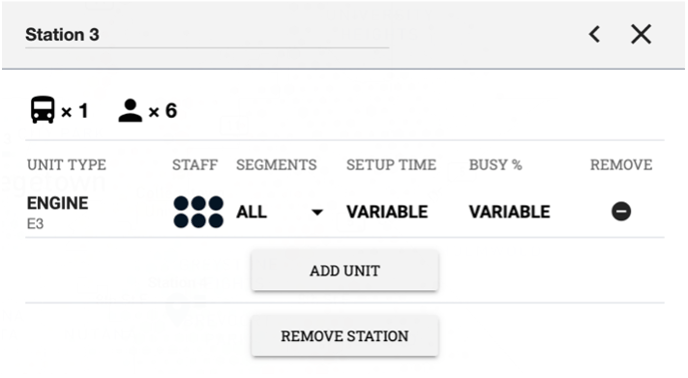
Edit an apparatus: With the apparatus’ station selected, select the > icon to reveal the following apparatus fields:
Segment: Determines the times in which this unit is available to respond to events.
Resource Type: Sets the apparatus as career or non-career. If your agency has career and non-career units, this option will allocate a separate setup time for the apparatus, using either pre-defined or calculated data for each option.
Setup Time: Displays the apparatus’ defined or calculated setup (combined alarm and turnout) time. If it displays “Variable”, hover over it to see the data.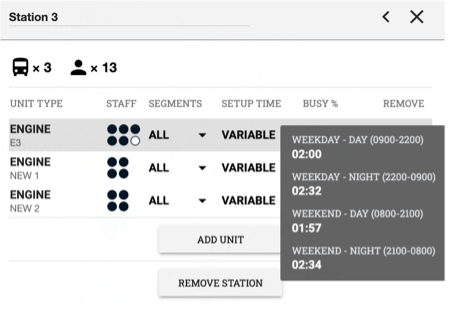
Busy %: Displays the apparatus’ calculated busy percentage, which shows how what percentage of the segment the apparatus is engaged on a response. If it displays “Variable”, hover over it to see the data.
Remove an apparatus: With the apparatus’ station selected, select the  icon under the “Remove” column.
Customization Options
The apparatus types, segments, resource types, and setup times (either determined or calculated using your data) can all be customized to match your agency’s unique service delivery model.